- Remove Hp Drivelock
- Hp Drivelock Master Password Crack Download
- Hp Drivelock Master Password Cracking
- Master Password For Roboform
How to open a laptop with windows 8.1 without resetting the unknown password?
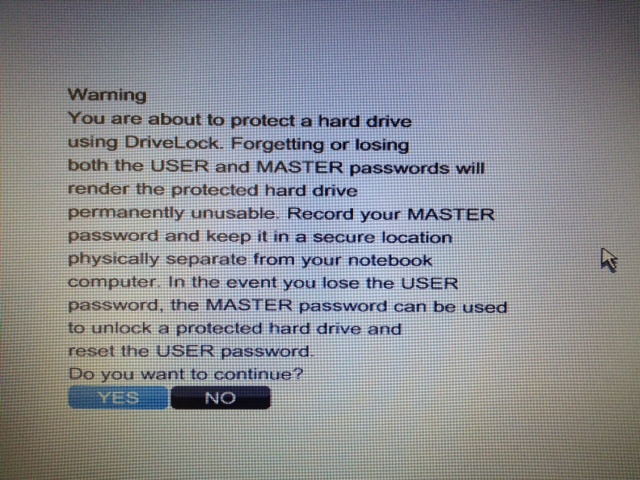
- Hard drives have 2 passwords: Master Password and User Password. The User Password is actually the security lock password, however, the Master Password or the User Password will work for erase. There is a utility available to set the master password on a locked drive and then use it to set the proper commands to have the drive erase itself.
- By cutting off the power, the BIOS/CMOS settings and password will be erased. If for some reason you’re unable to reset the computer’s BIOS security password by removing the battery or clearing the CMOS jumper, and you don’t know what the password is, here are several options which you can try out to clear it. Generic Backdoor Default.
Backdoor BIOS password is a set of passwords, which are master passwords provided by BIOS Vendor. These passwords are generic, and they are specific to manufacturers. In other words, all the manufacturers maintain a set of master passwords that can be used irrespective of whatever password the user has set. Whether you bought it on eBay and it came pre-locked or you set your BIOS password so long ago you can't remember it, for most laptop manufacturers resetting your BIOS password is as easy as.
For laptop users, you'll find quite difficulty to crack laptop password than desktop computer when forgot laptop password. This may due to the following reasons:
1. Some laptops aren't equipped with CD/DVD drive, so the password crack disk won't be help.
2. The laptop BIOS password is different from the desktop computers' to operate.
Right here we're going to deal with as one of our common annoyances for some time to come, cracking laptop password based on any Windows including Windows 10/8.1/8/7/XP/Vista, and Windows Sever 2012(R2)/2008(R2)/2003(R2). These methods supports all popular laptop brands, like HP, Dell, Lenovo, Acer, Asus, Toshiba, Samsung, etc.
1. Crack laptop password with a USB flash drive
With no DVD drive on your laptop, don't worry; there are ways for laptop password breaking with USB flash drive (pendrive).
A: Windows Built-in USB password reset disk
If you have created a USB windows password crack disk before, just use the following tip to crack your laptop password.
Step 1: When entering a wrong password, it will show you the Password hint and you can reset password. Click 'Reset password', it will show you the 'Password Reset Wizard'.
Step 2: Click 'NEXT' and select your USB password key disk drive to reset the password with a new one.
Step 3: Then you can use the new password enter your computer.
Remove Hp Drivelock
Note: The USB password reset disk only used in a certain account which you have created before.
B: Burning a bootable USB Windows Password Key
If you don't have a password reset disk, you can create one with professional laptop password cracker like Windows Password Key.
Step 1: Prepare a 2GB USB flash drive and a computer which you can access to.
Step 2: Download Windows Password Key and install it.
Step 3: Run the program and burn the ISO image to the external USB flash drive to create laptop password reset disk.
Step 4: Use the USB to reset laptop password. But in this step, make sure your computer is boot from USB drive, you can set a BIOS if necessary. Then follow the wizard to crack forgotten laptop password.
2. Crack laptop password from safe mode (For Windows 7)
You may learn that Windows OS has a default administrator account created during Windows installation. By default, the built-in administrator account is named Administrator and has no password in it. But Windows 7 usually has this account disable, you need to enable the account before. If forgot laptop password, try to follow this tip.
Step 1: Start your computer and press 'F8' while the computer boots up. The Advanced Boot Options screen appears.
Step 2. Scroll down to 'Safe Mode' and press 'Enter.' Your computer starts in Safe Mode.
Step 3. Click on the 'Administrator' account that appears on the Windows logon screen. After entering system, click on 'Start' and 'Control Panel' to change your other account password.
If you've reset the default administrator account or you didn't enable it if you're on the Windows 7 system, this tip won't help. Anyway, the best and quick way is burning a bootable Windows Password Key to reset forgotten laptop password.
3. Crack Laptop Password Online (For Windows 10/8.1/8)
If you are using Microsoft account to login your laptop, then cracking laptop password will be easy. You can follow steps below to reset laptop password online easily.
Step 1: Open Microsoft’s password reset website on any browser on any computer or device.
Step 2: Type your Microsoft account in the account filed and then the verification code. Click “Next” to move on.
Step 3: You can either select to email you a reset link or send a code to you phone to reset your password.
To sum up. We have shown you how to crack Windows 10/8/7 password on laptop with password reset USB, from safe mode and online. If you have any other questions, please leave a message at the comment area and we will see what we can do for you.
- Related Articles
- how to break administrator password in windows 7
- how to reset password windows 7 with usb
- how to bypass password on windows vista home premium
- 5 options to reset login password in windows 8.1
- how to recover windows 10 password
Please enable JavaScript to view the comments powered by Disqus.comments powered by Disqus
Nowadays, HP Elitebook is popular because of its high quality as well as great performance. It's the first choice for many buyers, especially office workers who pay a lot of attention on the datas protection.
HP EliteBook Series
- G1
- EliteBook 750 G1
- EliteBook 820 G1
- EliteBook 1030 G1
- EliteBook Folio G1
- ......
- G2
- EliteBook 725 G2
- EliteBook 850 G2
- EliteBook x360 1020 G2
- EliteBook Folio 1040 G2
- ......
- G3
- EliteBook 755 G3
- EliteBook 828 G3
- EliteBook 1040 G3
- EliteBook x360 1030 G3
- ......
- G4
- EliteBook 725 G4
- EliteBook 850 G4
- EliteBook 840r G4
- EliteBook 1040 G4
- ......
- G5
- EliteBook 735 G5
- EliteBook 830 G5
- EliteBook 840 G5 Healthcare Edition
- HP EliteBook 755 G5
- ......
If your computer is HP Elitebook and have you forgotten HP Elitebook password, bios or administrator account password? How to do if both of them lost? It seems hard though there may be lots of ways that can solve it. But if we talk about it separately, such as in two parts, HP Elitebook password reset would be not so difficult.
Part 1: How to Reset Forgotten HP Elitebook BIOS Password?
Generally, there are two ways to reset forgotten BIOS password. One is forcing BIOS/CMOS to reset itself to its stored defaults by removing all power from it. The other is to use a program to either locate or identify the password, and reveal it to you or erasing the password clearly.
Hp Drivelock Master Password Crack Download
And the most easiest and convenient method for erasing dynamic BIOS/CMOS settings is to remove battery directly from the motherboard. However, it applies to most motherboards besides HP Elitebook BIOS. Fortunately, HP Elitebook based on UEFI Bios provides a tool to reset BIOS password specially – HP SpareKey.
What's HP SpareKey?
HP SpareKey is a utility that helps you, or the administrator of the computer, recover lost system passwords, such as the power-on, drive lock, or BIOS passwords. When setting up the SpareKey, you are prompted to provide answers for a sequence of three predetermined personal identification questions.
How to reset BIOS password with SpareKey?
- Step 1: Before forgot BIOS password, you have set answers to three predetermined personal identification questions.
- Step 2: Write down the answers to these questions and put them in a safe place, away from the computer, so that you can always access them.
- Step 3: When you cannot remember the password to access the BIOS on your computer, turn on the computer and immediately press the ESC key to display the Startup Menu. And then press the F7 key.
- Step 4: HP SpareKey wizard pops up and prompts you for the answers to the three personal identification questions. If you successfully answer the questions, you are granted access and you can reset the password. (The picture is from https://support.hp.com.)(The picture is from https://support.hp.com.)
If you do not answer the questions correctly in the three attempts, you will be locked out of your computer. And then you must contact HP for assistance.
Note: HP SpareKey cannot help you recover Windows 7 or Vista administrator account password. It is intended solely to recover system-level passwords. So if you have problems about HP administrator password reset , go on to see Part 2.
Part 2: How to Recover HP Elitebook Administrator Password?
Since HP SpareKey couldn't reset HP Windows 7 administrator password, we have to think of other ways to recover HP Elitebook administrator password. For example, restore HP Elitebook to factory settings or reset HP Elitebook Windows login password with Windows Password Genius.
Method 1: Reset HP Elitebook Password by Factory Reset
This method will tell you how to restore factory settings in Computer Setup.
- 1. Turn on or restart the computer, and then press ESC when message is displayed at the button of the screen. Message: Press the ESC key for Startup Menu
- 2. Press F10 to enter computer setup.
- 3. Use a pointing device or the arrow keys to select File Restore Defaults.
- 4. Follow the on-screen instructions.
- 5. To save your changes and exit, click the Save icon in the lower-left corner of the screen, and then follow the on-screen instructions.
Surely, this method can reset HP administrator password, but HP laptop data would be lost after restoring HP laptop to factory settings. So it is not recommended unless you don't have another method.
Method 2: Recover HP Elitebook Password with Safe Windows Password Genius
Compared to method 1, this method is safer and more effective for HP Elitebook password reset. If you decide to use Windows Password Genius, you should prepare a blank and bootable USB flash drive or CD/DVD-ROM, and accessible computer before resetting HP password.
Step 1: Download and install Windows Password Genius Advanced version.
Step 2: Create a password boot USB disk or CD/DVD with Windows Password Genius Advanced.
Step 3: Boot HP Elitebook laptop from USB or CD/DVD ROM device by pressing F9.


Step 4: Reset HP Elitebook Windows 7 password after selecting administrator in user list and clicking Reset Password button.
Hp Drivelock Master Password Cracking
Want to get more detailed introductions about reset Windows password with Windows Password Genius Advanced? Please see the user guide of Windows Password Genius Advanced.
Master Password For Roboform
Related Articles: